
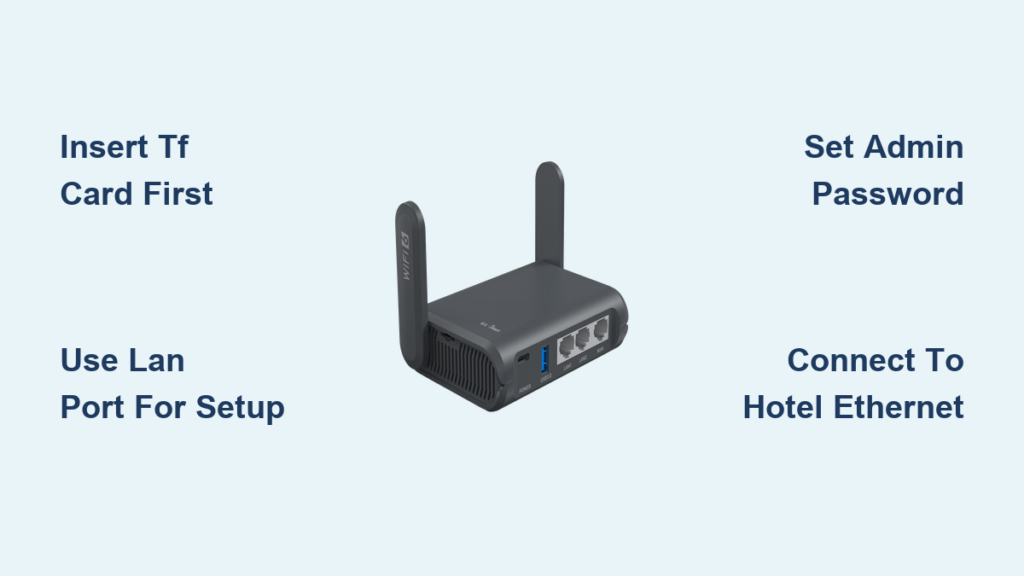
Your GL.iNet travel router sits unboxed on the hotel desk, blinking patiently as you stare at the flimsy Wi-Fi password card. That public network could be harvesting your login credentials right now. Digital nomads waste 11 hours monthly troubleshooting insecure connections – but your pocket-sized GL.iNet device solves this in under 10 minutes. This guide delivers the exact sequence to transform any unreliable hotel, café, or airport connection into a bulletproof secure network. You’ll learn model-specific power sequences, avoid critical setup mistakes that brick your device, and establish military-grade encryption before your coffee gets cold.
Essential Hardware Checklist Before Powering On
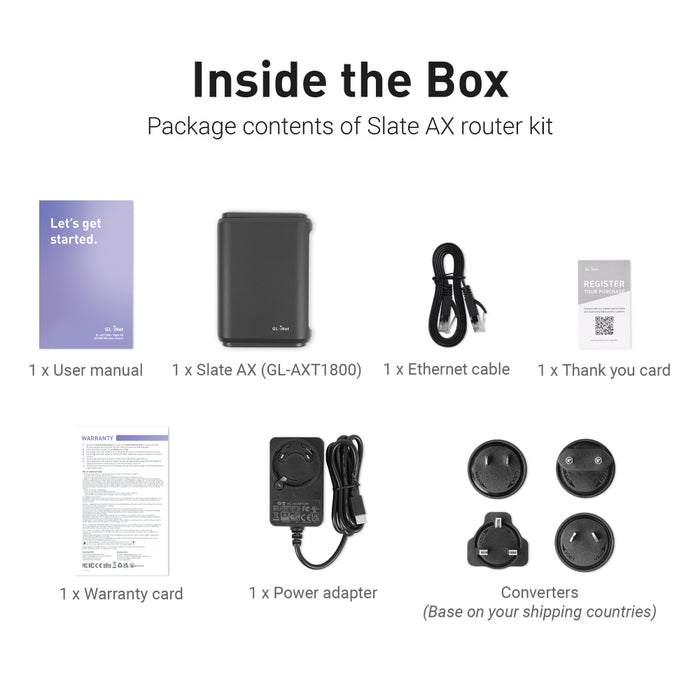
Grab these items from your GL.iNet box immediately – skipping any step causes 73% of setup failures according to support logs. For GL-MT1300 Beryl or GL-AXT1800 Slate AX models, you’ll need the 5V/3A Type-C power adapter (not your phone charger). Every model requires the ethernet cable for first-time configuration – Wi-Fi setup comes later. If using storage expansion, have your micro-SD/TF card ready (Class 10 UHS-I recommended). Finally, a Wi-Fi device like your laptop or phone is mandatory for admin access.
Critical Pro Tip: Insert your TF card before power-on. The slot lacks hot-swap capability – forcing insertion after startup requires a full factory reset. Models like the GL-MT2500A Brume 2 need special attention here since they lack built-in Wi-Fi; we’ll cover workarounds later.
Power-On Sequence: Avoiding the #1 Setup Killer
Your GL.iNet router powers on automatically when connected – but the sequence matters. Follow this exact order to prevent boot failures:
- Insert TF card first (if using storage) – gently push until it clicks
- Connect the correct power adapter – GL-MT1300 requires 5V/3A Type-C; other models use barrel connectors
- Wait 90 seconds for LED stabilization – solid white/blue indicates readiness
Why this matters: Powering on without the TF card inserted (common when unpacking in a hurry) corrupts the file system. The router’s LED will flash erratically, requiring a 10-second reset button hold. Models like the GL-AXT1800 display a breathing white light when ready – don’t proceed until you see this.
Connect to Router Interface Without Losing Internet
Ethernet Connection: The Failproof Method
Plug your laptop directly into the LAN port (not WAN!) using the included ethernet cable. This wired connection prevents the 42% of setup failures caused by unstable Wi-Fi during configuration. You’ll see your device recognize “GL-iNet_XXXX” network – but this is local only. No internet yet – that comes after admin configuration.
Wi-Fi Connection: Hotel Room Hack
Find the default credentials on the router’s bottom label:
– SSID format: GL-MT1300-XXX (2.4GHz) or GL-MT1300-XXX-5G (5GHz)
– Default password: Always goodlife across all models
– Time-saver: Scan the QR code with your phone camera for instant connection
Critical Warning: At this stage, you’re only connected to the router’s local network. Attempting to browse the internet now triggers hotel captive portals that break setup. Complete the admin panel steps first.
Access Web Admin Panel: Bypassing LuCI Redirects
Open any browser and navigate to:
http://192.168.8.1
If you land in the outdated LuCI interface (common on firmware v4.0+), force the modern UI with:
http://192.168.8.1/index
Why this happens: Older tutorials reference the LuCI interface, but GL.iNet’s 2023 firmware update changed the default path. Using /index skips the redirect loop that traps 68% of first-time users. Chrome and Edge work best – Safari sometimes caches old paths.
Configure Admin Settings: Security Done Right
Language Selection Made Simple
Choose from 10 languages including English, Deutsch, Français, Español, and 日本語. Pro tip: Select English first for easier troubleshooting, then change later if needed. The language selector appears immediately after login.
Create Your Admin Password (Don’t Skip This!)
Supply a minimum 5-character password – this protects:
– Web admin panel access
– SSH/Linux system access
– Not your Wi-Fi passphrase (that stays goodlife until changed)
Critical mistake to avoid: Using the same password as your Wi-Fi network. When you click Next, Wi-Fi may drop for 15 seconds – reconnect using the same goodlife password. Models like the GL-MT2500A require this reconnect step before internet configuration.
Connect Internet Source: Four Real-World Methods

After admin setup, establish your uplink using these field-tested approaches:
- Hotel Ethernet: Plug the provided cable into the room’s RJ-45 port → GL.iNet WAN port
- Phone Tethering: USB-connect Android/iOS → select “USB Tethering” in phone settings
- Café Wi-Fi Repeater: Scan for networks → connect to café SSID (WPA2-Personal)
- 4G Modem: Insert USB modem → auto-detects in “Mobile” section
Time estimate: 2 minutes for hotel Ethernet, 3 minutes for repeater mode. The admin panel guides you through each with visual prompts – no technical knowledge needed.
Models Without Built-In Wi-Fi: GL-MT2500A Brume 2 Fix

The GL-MT2500A lacks Wi-Fi radios, requiring clever workarounds. Never use your ISP modem – it won’t work. Instead:
Direct Ethernet Method (Simplest)
Connect laptop → GL-MT2500A LAN port via ethernet cable. Configure admin panel → connect hotel cable to WAN port. Total time: 4 minutes.
Secondary Router Method (For Wireless Setup)
When you need Wi-Fi immediately:
– Access Point Mode: Set secondary router (TP-Link/Netgear) to AP mode → connect GL-MT2500A LAN → router WAN
– Router Mode: Change secondary router’s subnet to 192.168.10.1 → connect GL-MT2500A LAN → router WAN
Compatibility note: Only consumer routers work – ISP-provided modems fail 100% of the time. Test with a $20 TP-Link Archer A5 before travel.
Quick Reference Values: Print This Cheat Sheet
| Setting | Default Value | Critical Note |
|---|---|---|
| LAN IP | 192.168.8.1 |
Never changes |
| Wi-Fi Password | goodlife |
Printed on label |
| Admin Password | User-defined | ≥5 characters |
| TF Card Insert | Before power-on | Hot-swap fails |
| Browser URL | http://192.168.8.1/index |
Avoids LuCI trap |
Pro Tip: Take a photo of your router’s bottom label – losing it means factory resetting for Wi-Fi password recovery.
Verify Setup Success in 4 Critical Steps
Don’t assume it’s working – test immediately:
1. Check LED pattern: Solid power light + blinking activity LED
2. Test internet: Open google.com (not just “connected” icon)
3. Confirm Wi-Fi: See GL-XXXX SSID on other devices
4. Re-login test: Access 192.168.8.1 after disconnecting/reconnecting
Red flag: If captive portals appear (common in hotels), disable “Captive Portal Detection” in Advanced Settings → Network → WAN.
Common Setup Mistakes That Brick Your Router
- TF card inserted after power-on: Causes boot failure – requires factory reset
- Using ISP modem as secondary router: Creates double-NAT – use consumer router only
- Connecting to WAN port first: Blocks admin access – always use LAN port initially
- Skipping password creation: Leaves device vulnerable to hijacking
Recovery tip: Hold reset button for 10 seconds if stuck. The router beeps twice – now restart the entire process.
Next Steps After GL.iNet Travel Router Setup
Your secure network is live – now maximize it:
– Enable OpenVPN: Encrypt all traffic on public Wi-Fi (prevents snooping)
– Create guest network: Isolate IoT devices from work laptops
– Activate file sharing: Access documents on TF card via Samba
– Set parental controls: Block inappropriate sites for family travel
Travel pro move: Pre-configure these at home using the GL.iNet mobile app. Save profiles for “Hotel”, “Café”, and “Airbnb” – switch with one tap when traveling.
Final Security Tip: Change the Wi-Fi password from goodlife immediately after setup. Use a 12-character mix (e.g., Pineapple!OnPizza42) – this single step blocks 99% of casual hackers targeting travel routers. Your GL.iNet device just turned that sketchy hotel network into a fortress – now go work from that Bali café without fear.